How to use the course platform
The video below (beginning at 01:41) illustrates how to navigate the course.
Please note, parts of the video below pertain to other IRMHP courses and may not apply here. The course interface periodically changes. For current views, please see the guide below.Navigating the course
This course is organized linearly and is best completed from beginning to end, however, you can freely navigate to other sections. The course also features a number of supplemental pages, containing entries on concepts mentioned in the course. Links to these pages are embedded throughout the course; you can also find them listed near the bottom of the course homepage.
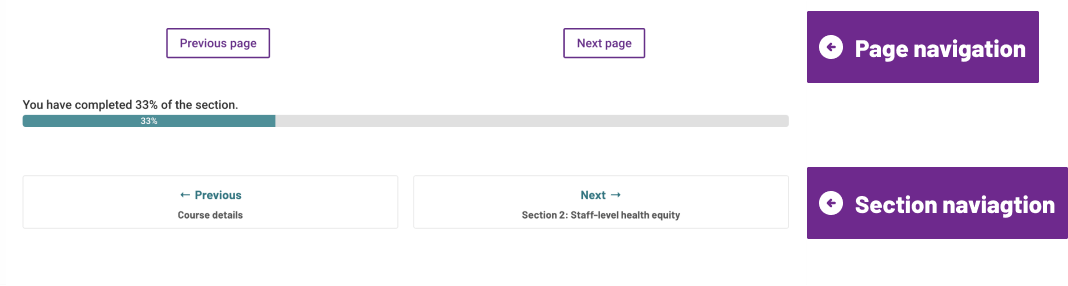
At the bottom of each page you will see two sets of buttons: one navigates between individual pages within the section, the other navigates between the sections within the module.
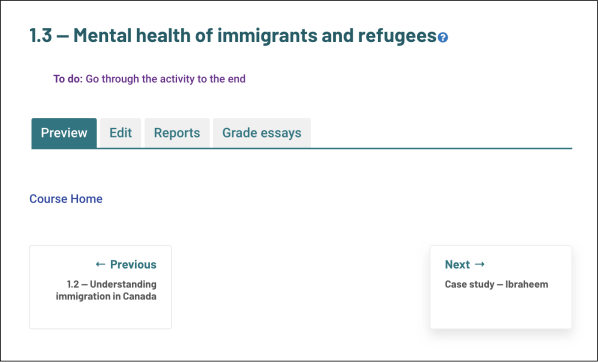
At the end of each section, you will reach a blank page. Here, you can return to the course homepage or jump to the next section via the navigation button by the bottom-right corner.
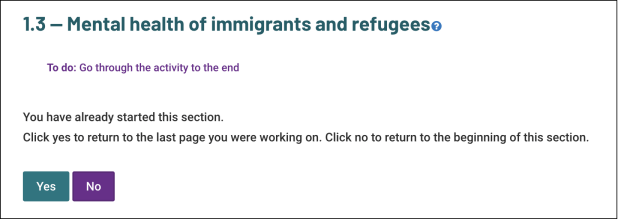
If you return to a section you have not yet completed, you will be presented with the option to jump to the last page you worked on (i.e. the furthest page you have reached, not the page you most-recently viewed).
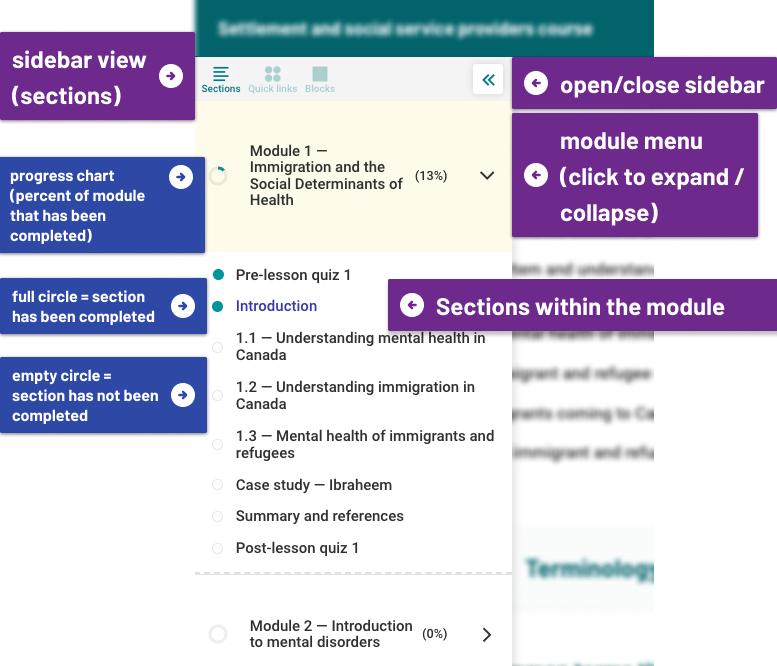
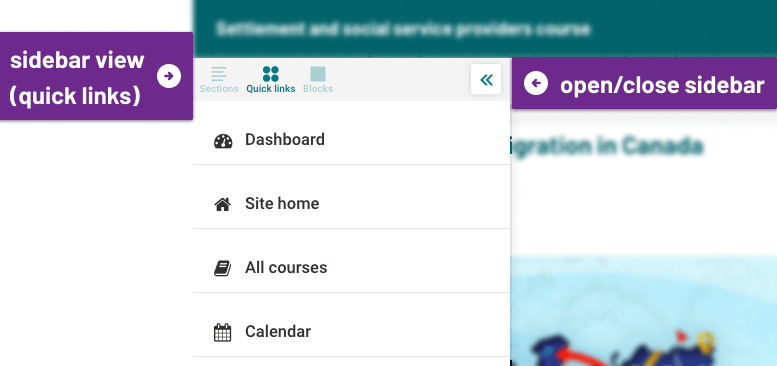
You can also navigate the site through the sidebar, which offers three views:
1: A table of contents, which lists each section of the course (on this view, a square block next to a page title indicates it is complete, while an underscore indicates it is still incomplete)
2: A general menu listing relevant administration pages outside of this course.
3: A more detailed section menu that lists each page within your current section
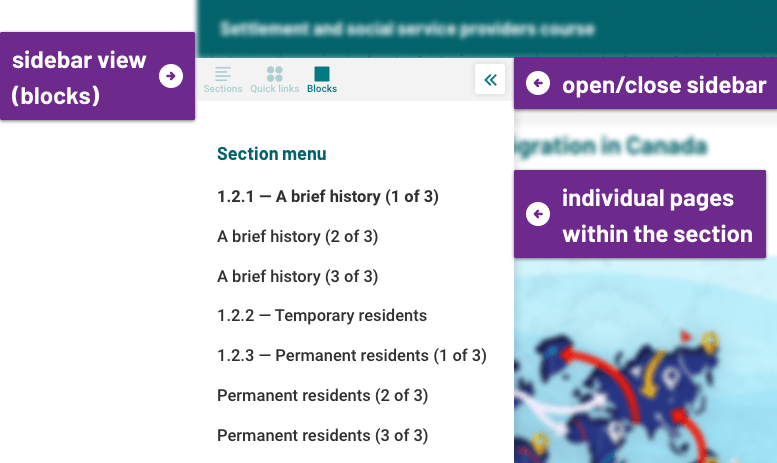
To switch between sidebar views, click the green icons in the panel by the top of the sidebar. To hide or display the sidebar, click on the arrow icon near the sidebar's top-right corner.
Interactions
Weblinks are indicated by the use of green text, in contrast to the rest of the paragraph.
For example:
-
Click on the green text to visit the site's homepage
-
Click on the green text to visit the site's homepage
-
Click on the green text to visit the site's homepage