How to navigate the course
The following video (beginning at 1:40) and the instructions below demonstrate how to effectively use the course platform and progress through the course.
Video: Getting started with the IRMHP course
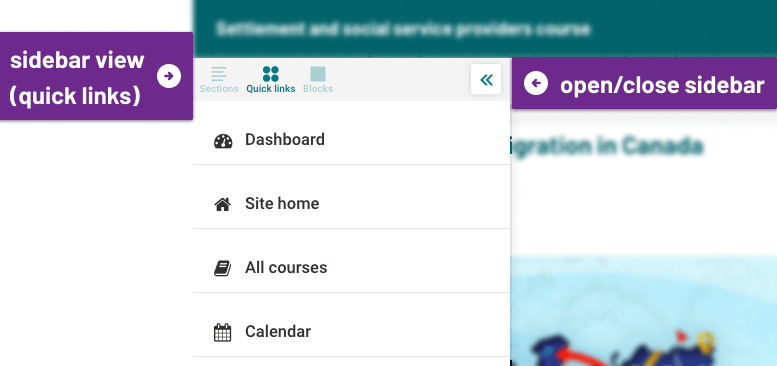
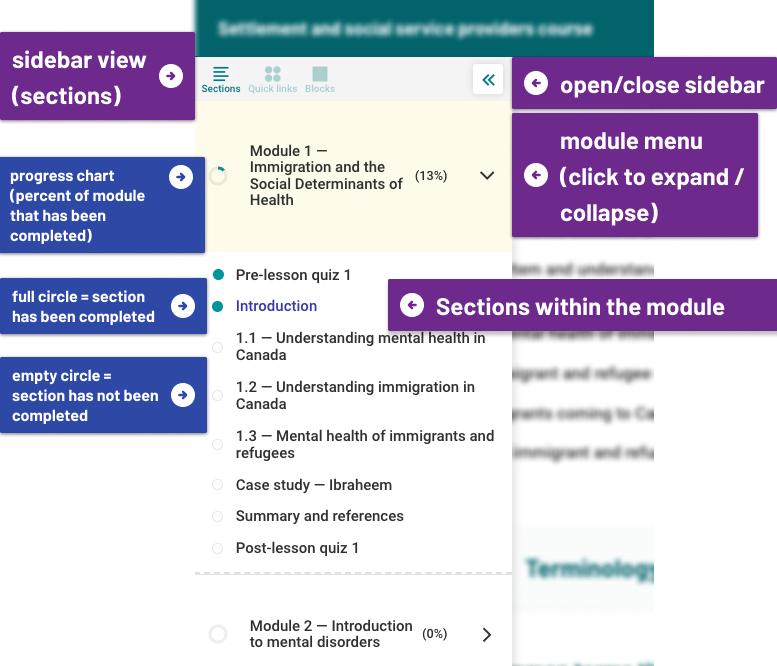
Welcome to the Immigrant and Refugee Mental Health online course platform. Accessing the course platform. On the day your course starts, you will receive a welcome email with a link to the course and instructions for logging in. We recommend you bookmark the course page. Otherwise, you can find our course platform at irmhp.ca/courses When you open the course link, you will first be asked to log in. In the username box, enter the email address you used to register for the course. In the password box, enter the temporary password provided in the welcome email. If successful, you will see a new screen prompting you to change your password. Please enter a secure password that meets the instructions shown on screen. If at any point during the course you receive an error message when trying to log in or cannot recall your login information, try using the forgotten your username or password function. Starting the course When logged in, you'll be taken to the homepage. From there, click on the courses box and find yours or hover over the My courses menu in the header. If you are registered in a course that is in session, you'll be taken directly to it. If not, you will see this window. This can happen if: you are logged in using an email address that is different from the one you provided when registering for the course or you opened a course that you had not registered for, or the course you registered for is not currently in session. Navigating the course: Course modules must be completed one section at a time from beginning to end. You must reach the end of one section to unlock the next one. However, you can freely revisit any previous sections you have already completed. If a section has a caption reading "to do," any following pages will be restricted. To begin the course, you must first go through the introduction and second, complete the pre-course quiz. Once these sections are completed, you can access module one beginning with the pre-lesson quiz. Inside each course section, you will see two sets of buttons at the bottom of the window. One moves between individual pages within the section, the other navigates between the larger sections within the module. At the end of each section, you will reach a blank page. Here you can return to the course homepage or jump to the next section via the navigation button by the bottom right corner. The next section button will not work until you have completed the current section. You can also navigate the site through the sidebar, which offers three views. One, a course menu, listing the modules and sections of the course. Two, a more detailed section menu that lists each page within your current section. Here a square block next to a page title indicates when the page is complete. An underscore indicates the page is still incomplete. This view also includes a navigation menu where you can jump to other parts of the course platform. And finally, there is a third view, which is a site menu with quick links to your dashboard. The homepage, course pages, and calendars. Completing quizzes Certain courses include quizzes that measure how your knowledge changes between starting and completing each module. For that reason, you will complete several pre and post quizzes that feature the same questions. You can only attempt each quiz once, however, you don't need to complete it immediately. When opening a quiz, you will see one of these three messages. If you have not yet begun the quiz, you will see a button inviting you to "attempt quiz now." If you have started but not completed the quiz, you will see a button inviting you to "continue your attempt." If you have completed the quiz, you will see a line indicating when you did so, including a review button where you can review the responses you submitted. Once you have answered all the quiz questions, click the "finish attempt" button. On the next page, review your selected answers, and click the "Submit All and finish" button. Please note that you will see correct answers only on the post lesson and post-course quizzes. If you continue having difficulty accessing or navigating the course, please feel free to contact us at irmhpadmin@camh.ca For all other questions about the course, please contact irmhproject@camh.ca.
Moving through the course
This course is organized linearly, meaning that you can only complete it one part at a time, from beginning to end. However, you can freely revisit any parts you have already completed.
Modules 2-10 will be hidden until they are successively unlocked.
The course comprises ten modules, each contains:
- a pre-lesson quiz
- topic sections
- individual pages that make up each section
- a post-lesson quiz
In addition to the pre-course evaluation, you will have to complete a pre-lesson quiz before you can begin each module. You will also have to complete a post-lesson quiz to unlock the next module.
Similarly you must reach the end of one section to advance to the next one.
At the bottom of each page you will see two sets of buttons: one navigates between individual pages within the section, the other navigates between the sections within the module.
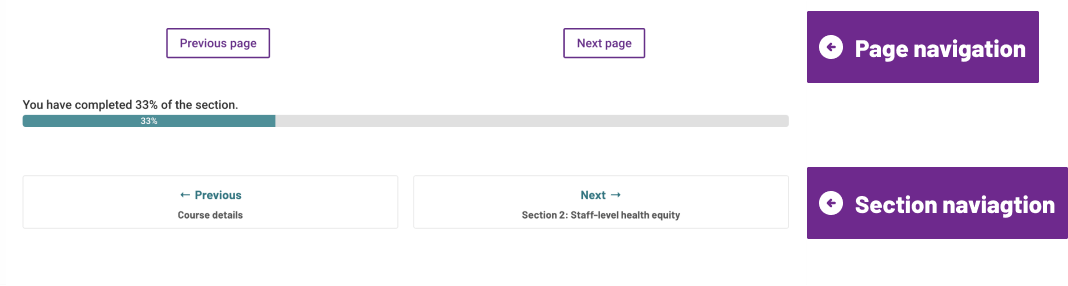
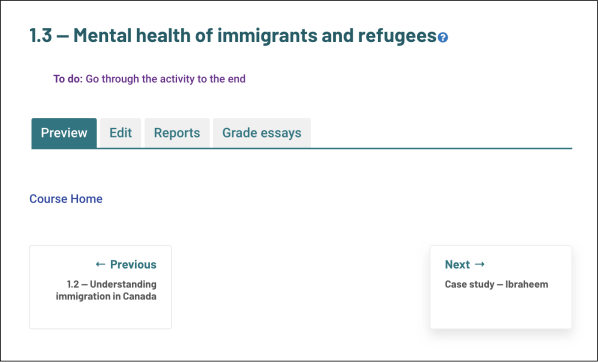
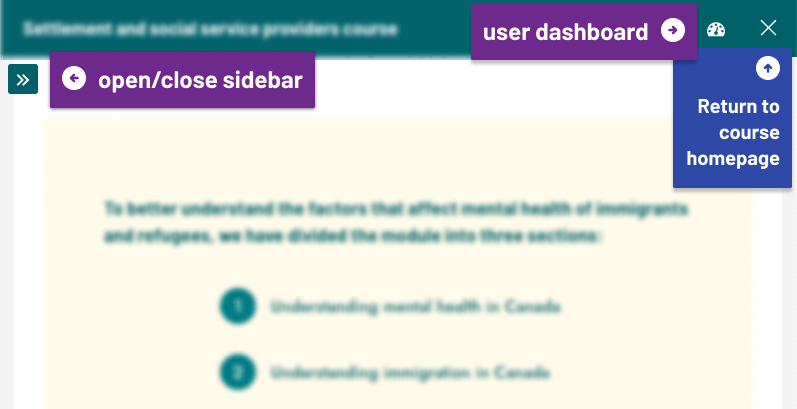
At the end of each section, you will reach a blank page. Here, you can return to the course homepage or jump to the next section via the navigation button by the bottom-right corner.
Note: the button to jump to the next section will not work if you have not yet unlocked the next section.
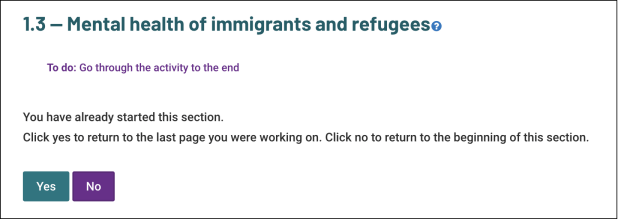
If you return to a section you have not yet completed, you will be presented with the option to jump to the last page you worked on (i.e. the furthest page you have reached, not the page you most-recently viewed).
You can also navigate the site through the sidebar, which offers two views:
- A table of contents, which lists each module and section of the course.
A more detailed section menu that lists each page within your current lesson (on this view, a square block next to a page title indicates it is complete, while an underscore indicates it is still incomplete)
In both views, a sitewide navigation menu is available below, featuring links to pages concerning your account, other courses, and other resources.
To switch between sidebar views, click the "cycle" icon in the sidebar's top-right corner. To hide or display the sidebar, click on the three bars near the page's top-right corner.
Pre- and -post lesson quizzes
Completing quizzes is necessary to advance through the course. You can only attempt a quiz once; however, you do not need to complete it all at once, and can review your responses after submitting them.
As such, you will see one of three screens on each quiz page.
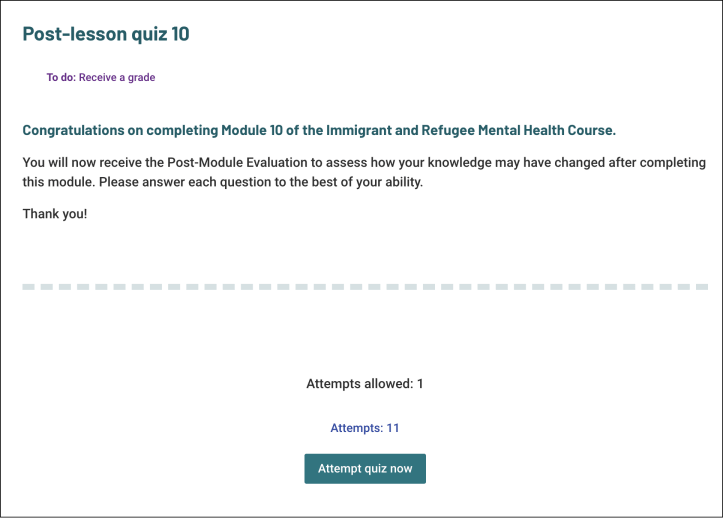
- If you have not yet begun the quiz, you will see a button inviting you to "Attempt quiz now".
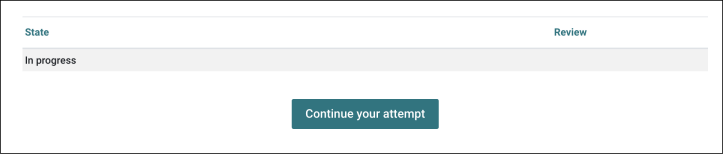
- If you have opened but not completed the quiz, you will see a button inviting you to "Continue your attempt".
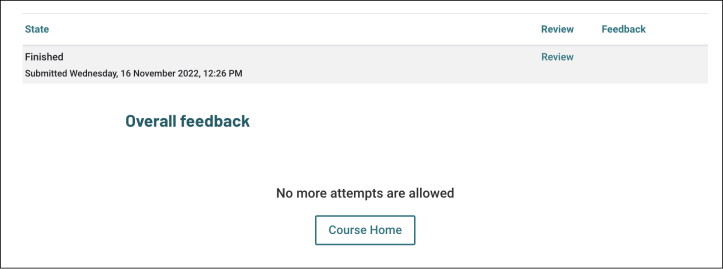
- If you have completed the quiz, you will see a line indicating when you did so, including a "review" button where you can view your responses.
You will not receive feedback on post-lesson quizzes but not pre-lesson ones.
These quizzes are designed to evaluate learners' retention of core concepts from each module, relative to the prior knowledge they bring to the course. As such, pre- and post-quizzes feature the same questions, with the correct responses provided after the post-lesson quiz.
Before starting the quiz:
After starting the quiz, but before completing it:
After completing the quiz:
Interactions
Weblinks are indicated by the use of navy or green text that stands out from the rest of the paragraph.
For example:
-
Click on the blue text to visit the site's homepage
-
Click on the blue text to visit the site's homepage
-
Click on the green text to visit the site's homepage
Notification and communication settings
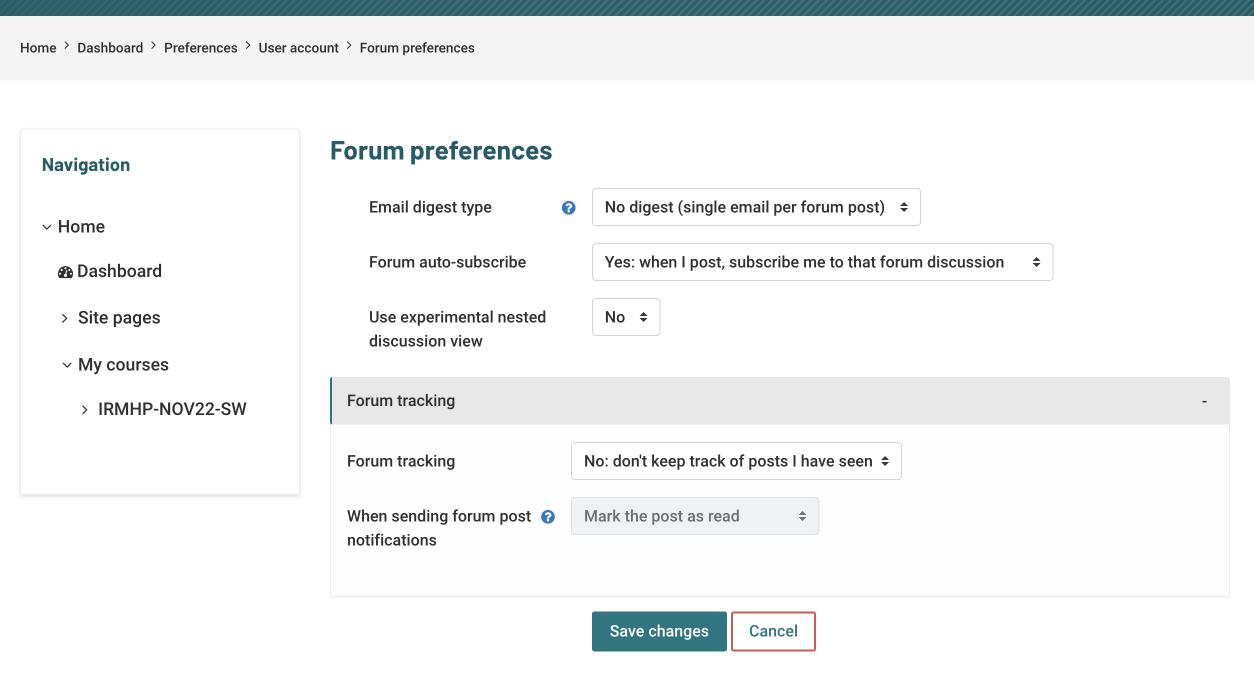
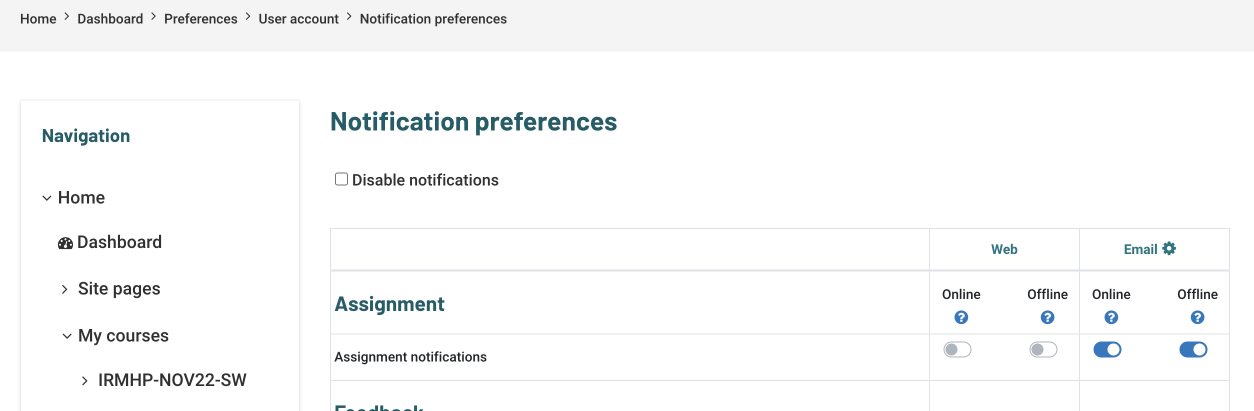
You can control what messages you receive from the course platform, including updates from the Community of Practice. To access your notification settings, navigate to the user dashboard, click on Preferences, then User account. From there, you can view 1) your notification preferences, and 2) your forum preferences.
1) To change what messages you receive on the course site and/or by email, toggle the settings on the notification preferences page.
2) To change the messages you receive about forum activity (e.g. alerts about replies to forum threads), adjust the settings on the forum preferences page.